|
|
|
This site was last updated 05/24/16
|
Tucows downloads - This site has an amazing amount of all types of downloadable programs. You just need to wade through them all to get to the program that your after. Note that they also have a rating system that will help you to pick a program to download. DeskTopPublishing - This site has tons of free templates for building web sites and anything to do with web page development. HTML Station - This site provides demonstrations, tutorials, codes, specification summaries, techniques/technologies descriptions, and supporting information about hypertext mark-up language (HTML) and related technologies. Free Education on the Net - Do you want to learn more about computers and different programs? This site is for you, a walk through in IT courses. This site also covers a wide range of different courses in just about all areas. I have found a new site which allows you to send very
long URL's in a
special format that holds the address together... really great. |
|
Satellite and Internet Overview This document contains instructions for the basic tasks of: · Usage allowance and Satellite connections · Downloading and uploading · High usage downloading · Telstra usage meter
·
Telstra links Usage allowance and Satellite connections Usage allowances are placed on satellite connections, which sets a limit on how much data you can download or upload before you get charged an extra fee. Usage allowance and the fees for exceeding the allowance depend on your satellite plan. Telstra send notification emails once your usage for the month reaches 50%, 80% and 100% . See also Telstra usage meter below.
Downloading and uploading Downloading means data coming to your PC through the satellite connection – this can be receiving emails and email attachments, viewing web pages, copying files to your computer from the internet. Uploading means data going out from your PC through the satellite connection – sending emails and email attachments, publishing a website, allowing access to files on your PC with a file sharing program.
Both uploads and downloads count towards your usage allowance. High usage downloading There are file sharing programs that allow users to swap music files (MP3’s), which is an illegal activity. These programs allow downloading, but also users to upload files from your PC which all counts towards your usage. If multiple users uploaded from your computer, your usage can quickly grow.
Every file that you download counts towards your usage. For example downloading a 10Mb software file will count as 10Mb of your usage. Most sites will show how the size of files provided for download.
Online gaming, especially if played against other players over the internet is usage intensive. Many games available for download have large file sizes, especially if they have regular updates to download.
Streaming content is watching video or listening to live radio broadcasts on the internet, which can be download intensive. Animations, such as cartoons on sites like Disney and Nickelodeon are not an download intensive, but can quickly add up in your usage.
Email attachments can dramatically increase the amount of usage your email consumes, if you send multiple and large attachments.
Spyware is software that records details of the PC’s internet usage and then secretly passes the information on to the software company. These programs sometimes “piggyback” onto free software, such as file sharing software and can contribute to your usage.
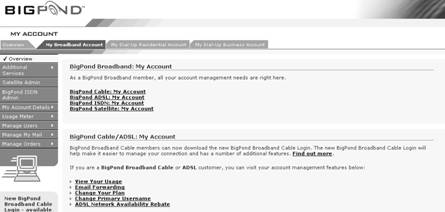
The Telstra usage meter can be found on your account page http://www.bigpond.com/myaccount/broadband/default.asp
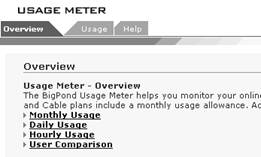
LMC on View your usage
LMC on Monthly Usage, Daily Usage or Hourly usage
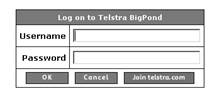
Enter your username and password
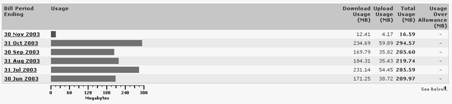
LMC OK You will then see a graph of your satellite usage
Bigpond homepage http://www.bigpond.com/
1 way satellite plans information http://www.bigpond.com/broadband/access/1waySatellite/plans/default.asp
2 way satellite http://www.bigpond.com/broadband/access/2waySatellite/plans/default.asp
Usage calculator http://www.bigpond.com/home/support/tools/usagecalc/
Broadband help centre
Through out this document the following abbreviations are used: · LMC indicates a single left mouse button click · DLMC indicates a quick double click of the left mouse button. · RMC indicates a single left mouse button click
|
|
Email us at schoolhouse@www.governessaustralia.com
"You're not just a govo, you're THE GOVO" Copyright ©
Governess Australia All rights reserved. |